
Effective communication is essential in the fast-paced professional world of today. It’s important to act professionally while you’re away, whether you’re flying to a business conference or taking a well-earned vacation. A tool that makes sure your contacts know you’re not away and that your absence doesn’t interfere with work is out-of-office emailing. We’ll look at using Zoho Mail to effectively compose and send professional out-of-office messages in this tutorial.
Understanding Out-of-Office Messages:
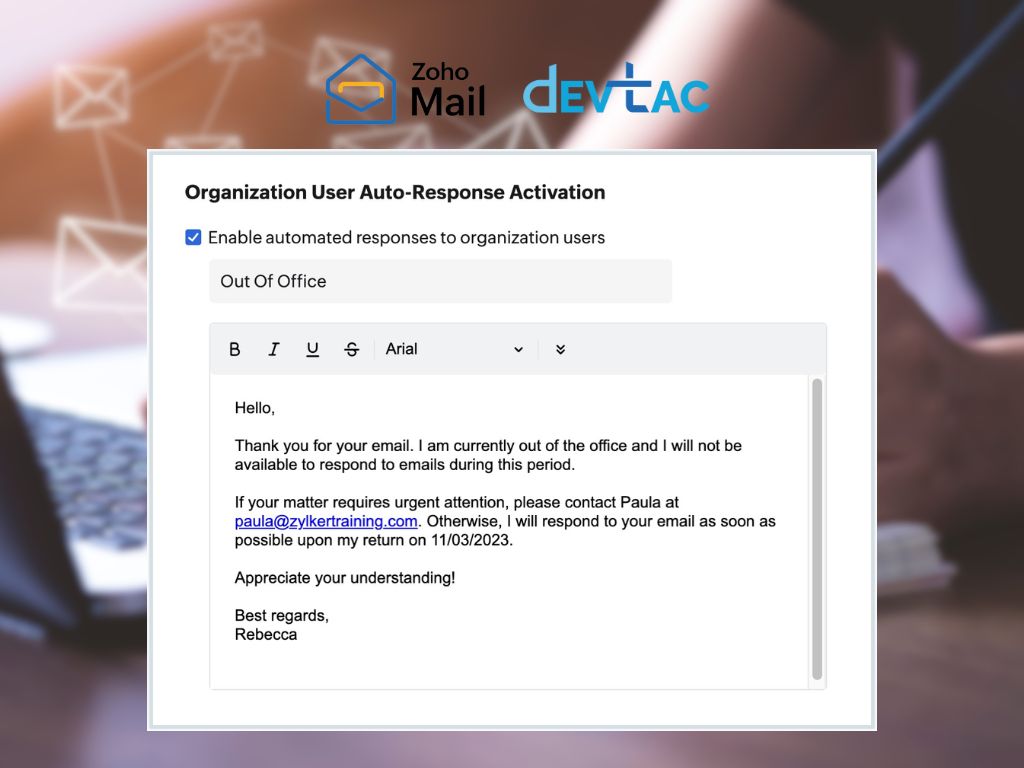
Out-of-office messages, often abbreviated as OOO messages, serve as automatic replies to incoming emails when you’re away from work. They notify senders about your unavailability, provide alternative contacts for urgent matters, and set expectations for your return.
Setting the Stage for Professional Absence:
Before diving into Zoho Mail’s features, it’s essential to understand when and why out-of-office messages are crucial. Whether you’re embarking on a vacation or attending a business trip, informing your team and clients beforehand demonstrates respect for their time and ensures seamless communication channels.
Crafting a Professional Out-of-Office Message:
A well-crafted out-of-office message adheres to certain best practices:
- Politeness: Express gratitude to the sender.
- Clarity: Specify dates of absence and provide alternative contacts.
- Conciseness: Keep the message brief yet informative.
- Professionalism: Maintain a tone suitable for professional interactions.
- Privacy: Avoid sharing unnecessary personal details.
Maximizing Zoho Mail’s Out-of-Office Feature:
Now, let’s dive into Zoho Mail’s intuitive interface to set up your out-of-office auto-reply seamlessly:
- Access Settings: Click on the Settings icon in the top-right corner of your Zoho Mail account.
- Navigate to Out of Office: Locate the Out of Office section within Settings.
- Create New Out of Office: Click on “Add new out of office” to begin configuration.
- Customize Settings: Choose your audience, set start and end dates, define time intervals, and select recurrence options.
- Craft Message: Enter the subject and content of your out-of-office message, adhering to the aforementioned best practices.
- Save and Activate: Once satisfied, click “Save” to activate your out-of-office auto-reply.
Incorporating professional out-of-office messages into your email routine not only enhances communication etiquette but also ensures continuity in your absence. By leveraging Zoho Mail’s user-friendly features, you can streamline the process of setting up and managing out-of-office responses, leaving you to enjoy your time away with peace of mind.